 September 6, 2026
Restaurant QR Code Table Tents: A Print and Placement Guide
Design and test QR menu table cards that guests can find, scan, and understand under real restaurant lighting.
Start at the seat, not the design file
A QR menu table tent has a small but specific job: help a seated guest reach the right menu without a staff explanation. A beautiful mockup cannot tell you whether the printed card will work next to water glasses, behind a flower arrangement, or under evening lighting. Begin with the table where the card will be used.
Before designing the card, open the public menu link on a phone that is not signed in to your editing account. Confirm the restaurant name, current service menu, and language choices. Print only after the destination is approved. A card that scans perfectly but opens an editor or an outdated menu still fails the guest.
Protect the code and its empty border
DENSO WAVE specifies an empty margin at least four modules wide on every side of a standard QR Code. A module is one small square in the code. Keep decorative borders, text, photographs, and the card edge outside that clear area. The margin is part of the code artwork, not spare space to trim away.
There is no single physical size that guarantees a successful scan at every table. Code density, printed module size, scanning distance, and the finished material all affect the result. Use clean source artwork, avoid stretching it, and test the actual printed proof before ordering a batch. If guests struggle, try a larger code and a less reflective finish, then repeat the same test.
Choose placement by the service situation
| Location | Likely obstacle | Practical check |
|---|---|---|
| Two-person dining table | Glasses or condiments cover the code. | Scan from both seats after the table is fully set. |
| Large shared table | One card is out of reach for some guests. | Check visibility from each seating position; add a second card if needed. |
| Bar counter | Spills or nearby objects obscure a flat sticker. | Compare a protected flat label with a stable upright card. |
| Outdoor seating | Sun glare, wind, and weather damage. | Test the finished material outside and check that it stays in place. |
| Host stand | Guests assume the code opens a reservation form. | Label the destination clearly and retain a menu option at the table. |
Give the scan a clear label and a fallback
Keep the message literal: “Scan to view our menu” tells guests what will happen. Put the restaurant name nearby and include a short, readable menu address when practical. Avoid putting several unrelated QR codes together without distinct labels; a guest should not need to guess which code opens food, Wi-Fi, or a review form.
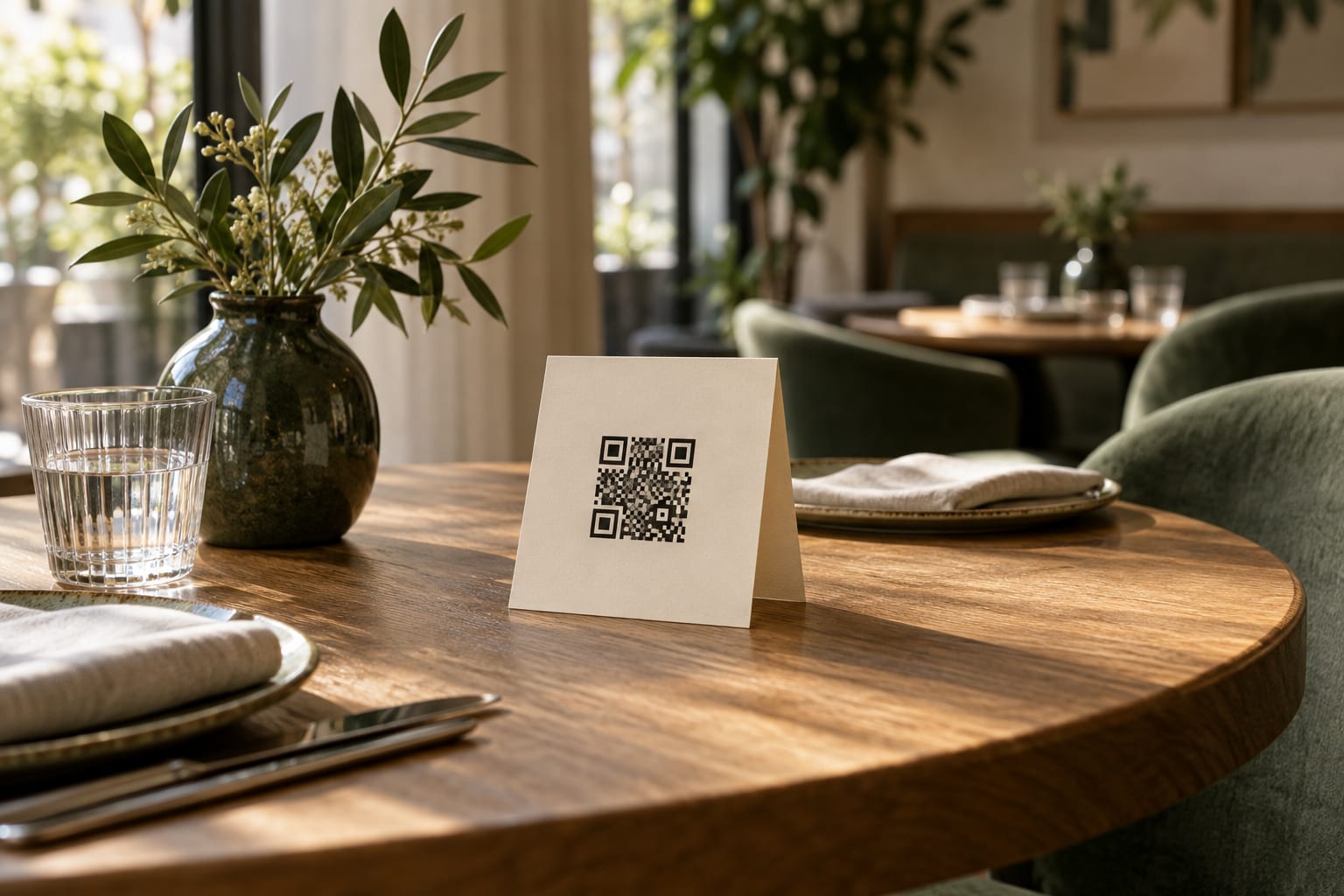
For an illustrative card, use the restaurant name at the top, a centered code with its clear margin, and a one-line invitation beneath it. Add “Paper menu available—please ask” if that matches your service. This is an editorial layout example, not a required template. A restaurant with table service may need different wording from a counter-service café.
A fallback should work during service. Keep the current paper menu within reach of staff and make sure a guest can ask for help without first scanning a code. Do not make a phone, camera permission, or account sign-in a condition of reading the menu.
Approve the printed proof with a repeatable test
Separate a camera problem from a loading problem. If the phone cannot recognize the code, investigate artwork, size, glare, or placement. If the link appears but the menu does not load, check the destination and connection. Changing the printed design will not repair a broken page.
Use your observations as the acceptance criteria. For example, require every tested seating position to reach the correct menu without moving another guest’s belongings. Record the devices and conditions tested rather than describing the card as universally scannable.
- Use the final paper, finish, print scale, and holder for the proof.
- Place the card on a fully set table under normal daytime and evening lighting.
- Try more than one phone from the usual seated position, without manually zooming the camera first.
- Confirm the code opens the correct public menu on both cellular data and restaurant Wi-Fi.
- Check the restaurant name, prices, and service menu after the page loads.
- Record any failed scans and adjust one factor at a time before retesting.
Maintain the cards along with the menu
Add table cards to the opening checklist. Replace cards that are bent, dirty, peeling, or covered by another sticker. After moving furniture or changing table decorations, repeat the placement check. Keep one approved proof so replacement prints use the same destination and spacing.
With MenuGo AI, edits to an existing published menu keep its menu URL and QR code stable when you publish again. Still verify the guest-facing page after a change. If you create a different menu or replace the destination, scan the actual card before returning it to service.